What you're checking
You can build a brand-new certificate program in the training site — add a course, create the certificate, set what learners must complete, and publish it — the same way you would for a real program.
Before you start
| Role | Password | |
|---|---|---|
| Program Manager | pm_catalog@example.com | password12! |
Use Open training site at the top of this page, then sign in as Program Manager.
Pick a certificate name you have not used before (for example Practice Certificate — Spring Add-on) so you do not overwrite the sample Paralegal program.
If tiles or lists look empty, ask OCE IT to load practice data on the training site.
Step 1 — Open the program catalog
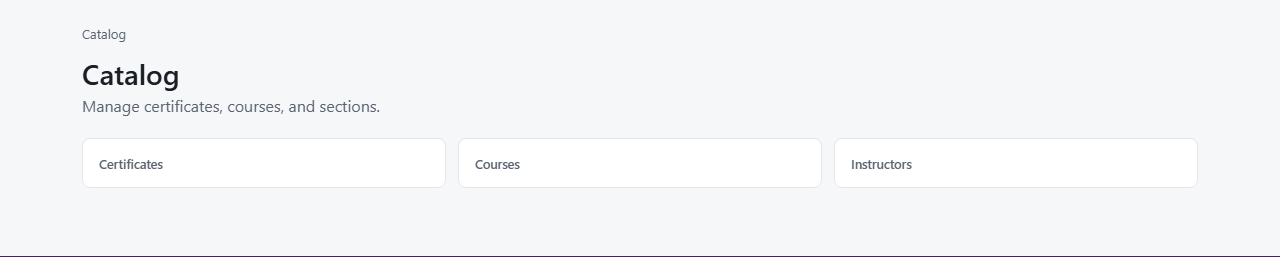
- After sign-in, open Catalog from the menu (or go to the catalog home page)
- You should see two big choices: Certificates and Courses — like picking which filing cabinet to open
You're done when
Step 2 — Create a course first
- Click Courses
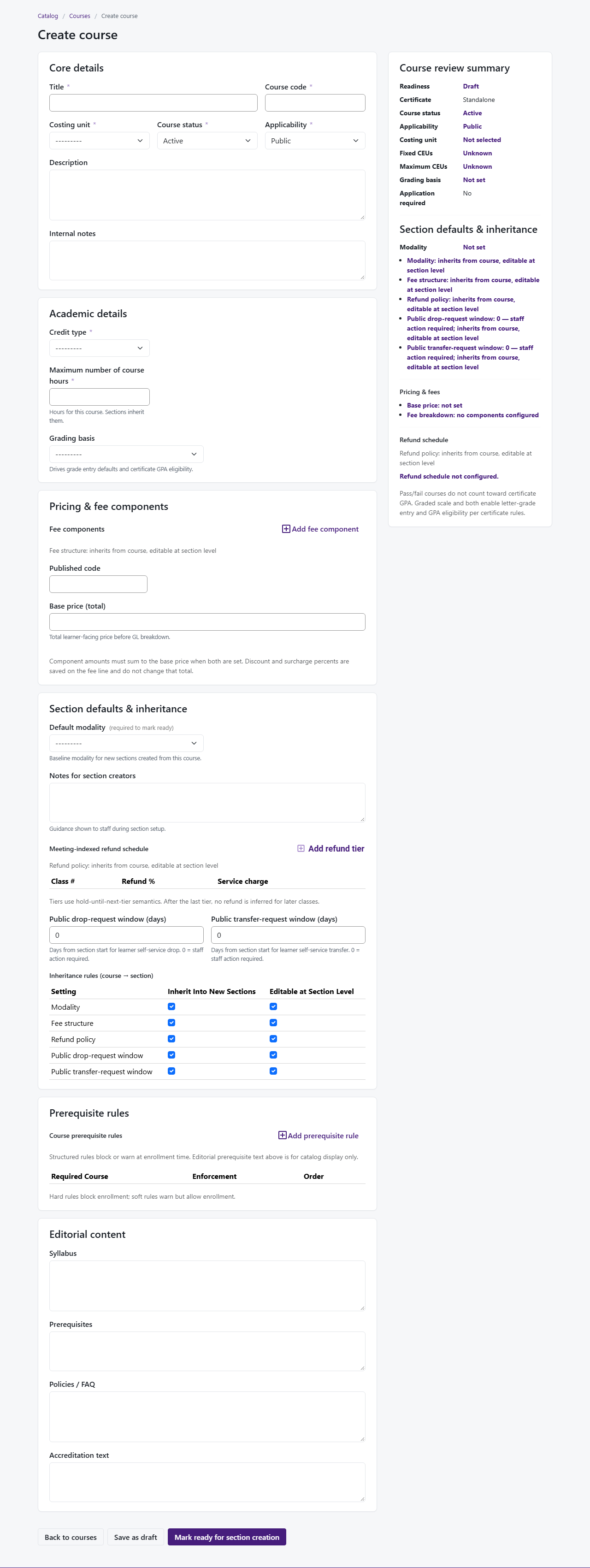
- Click + Create course
- Choose costing unit Paralegal Studies (PL)
- Fill in the basics: title (for example Practice Course — Legal Writing II), course code, credit type, and how the class is offered (modality)
- You should not be asked to pick a certificate on this screen — the course stands on its own first
- Click Save as draft (or Mark ready for section creation if everything is filled in)
You're done when
Step 3 — Create the certificate
- Go back to Catalog and click Certificates
- Click Create certificate
- Enter a Name, choose Paralegal Studies (PL) for costing unit, and fill in subject area, description, and the short web title and description learners might see
- Click Save draft
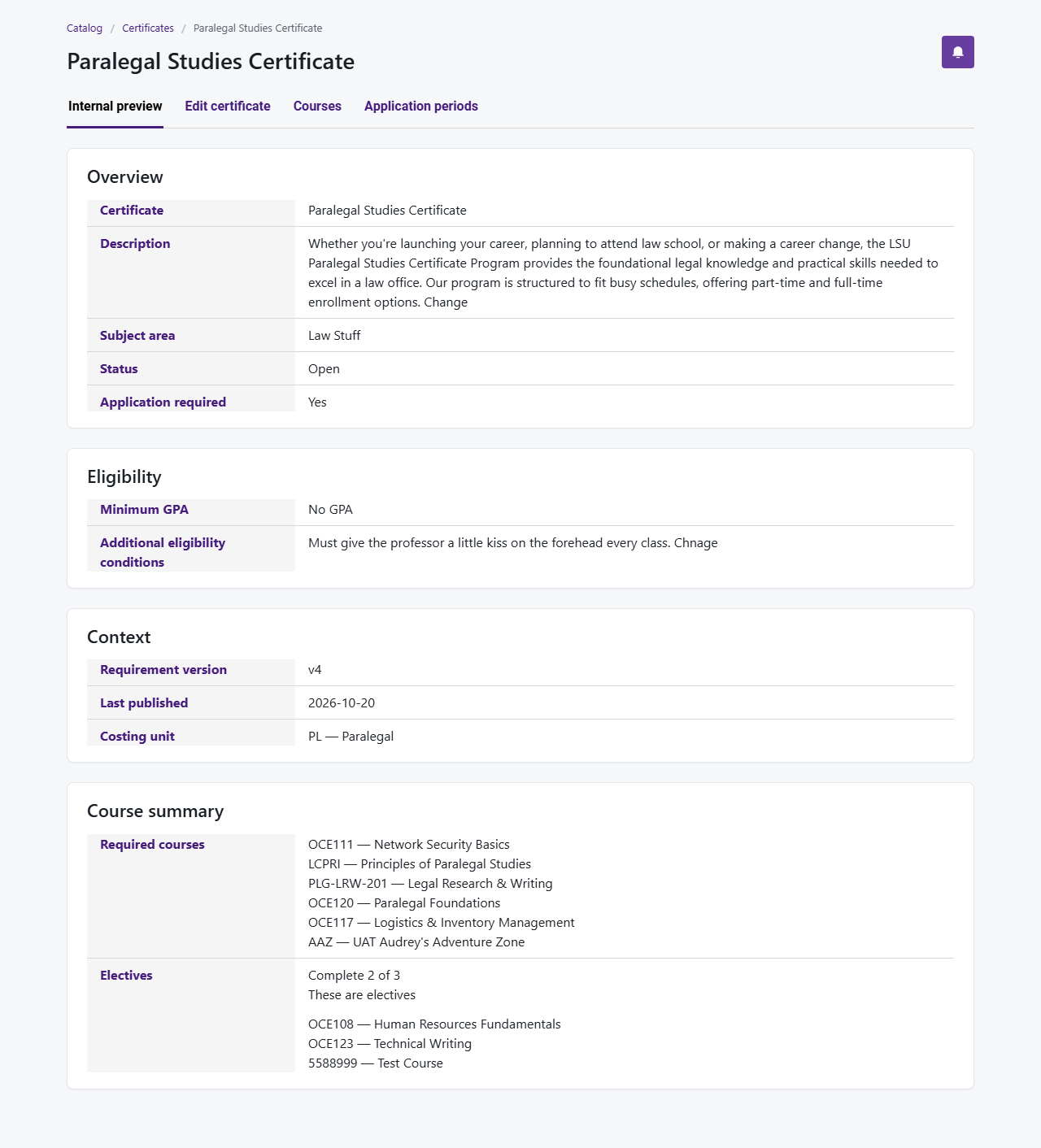
- You should land on an Edit certificate page with sections such as program details, courses, version history, path review, and publish
You're done when
Step 4 — Add your course as a required course
- On the certificate page, find Courses
- Under Required courses, click Add course
- Search for the course you created in Step 2 and add it
- It should appear under Required courses, not under electives
You're done when
Step 5 — Add an elective group (recommended)
- Under Elective groups, click Add group
- Name it (for example Pick one elective) and set how many courses a learner must choose (for example 1)
- Create the group, then Add course inside it — use a second Paralegal course (create another course first if you only have one)
- The same course should not appear as both required and elective
You're done when
Step 6 — Set GPA and eligibility rules
- At the top, open Certificate context (program details)
- Set Minimum GPA or check No GPA, whichever matches your policy
- Add notes under Additional eligibility conditions if your program uses them
- Click Save draft at the bottom of the page
You're done when
Step 7 — Make sure you're ready to publish
- Scroll to Publish
- Click Check publish readiness
- If something is blocking you, fix it (missing course, elective slots, GPA, and so on) and check again
You're done when
Step 8 — Publish the certificate
- Read the warning about learners already in the program vs learners who enroll later
- Check the box to acknowledge you understand
- Click Publish
- Check Version history — you should see a published version
You're done when
Extra time — See what learners would see
- From the certificates list, use Published preview (not the internal preview from the row menu)
- Confirm the page looks like a reasonable public-facing program page
You're done when