What you're checking
You can update an existing certificate — review what learners must take on the sample Paralegal Studies Certificate, make a real curriculum change, and publish a new version with a clear warning about who the change affects.
Before you start
| Role | Password | |
|---|---|---|
| Program Manager | pm_catalog@example.com | password12! |
Use Open training site, then sign in as Program Manager.
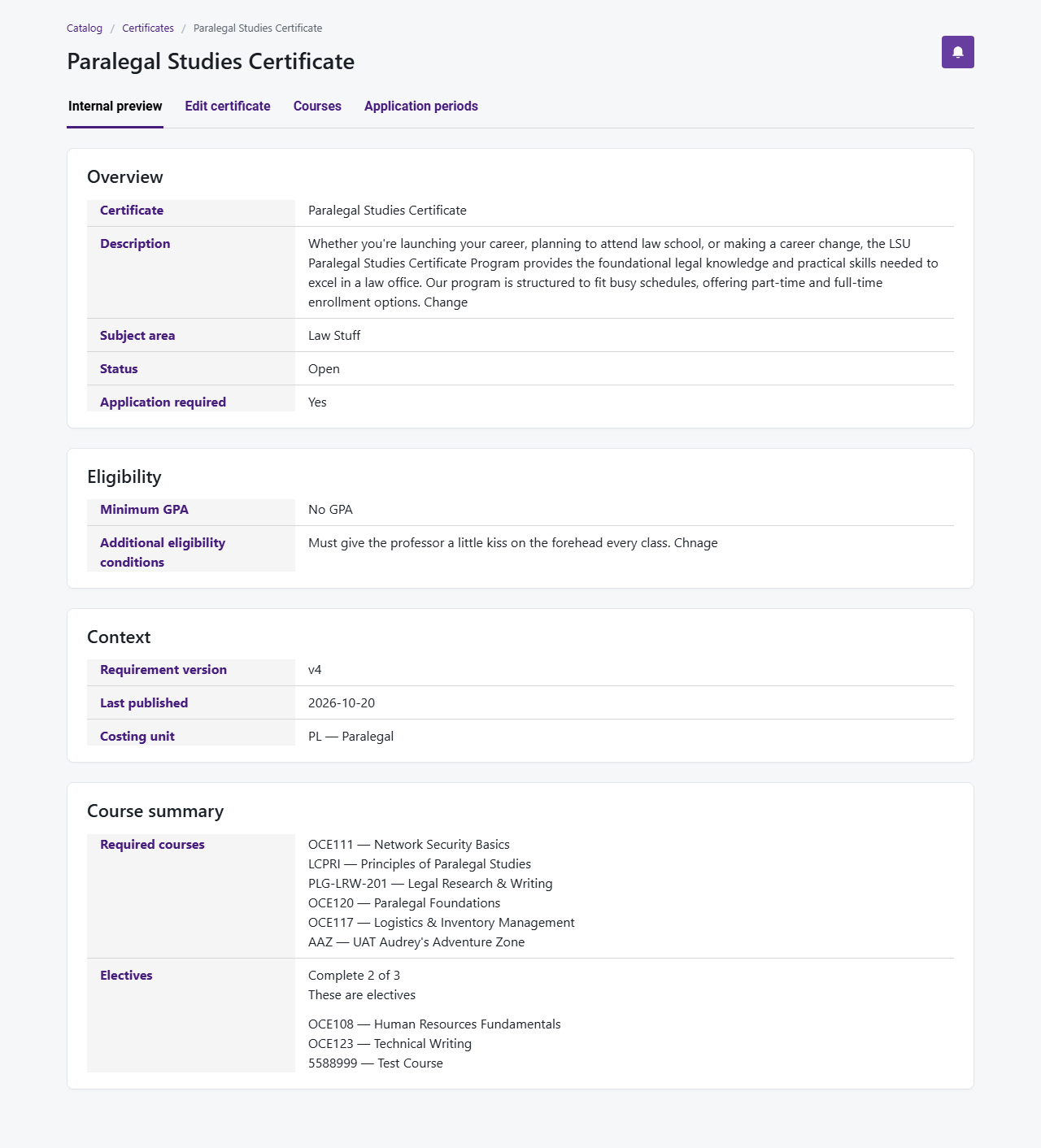
You should see Paralegal Studies Certificate with course Legal Research & Writing (PLG-LRW-201). If not, ask OCE IT to load practice data.
Step 1 — Open the Paralegal certificate
- Open Catalog → Certificates
- Click Paralegal Studies Certificate to edit it
- You should see one scrollable page: program details, courses, version history, path review, and publish
You're done when
Step 2 — Review and change requirements
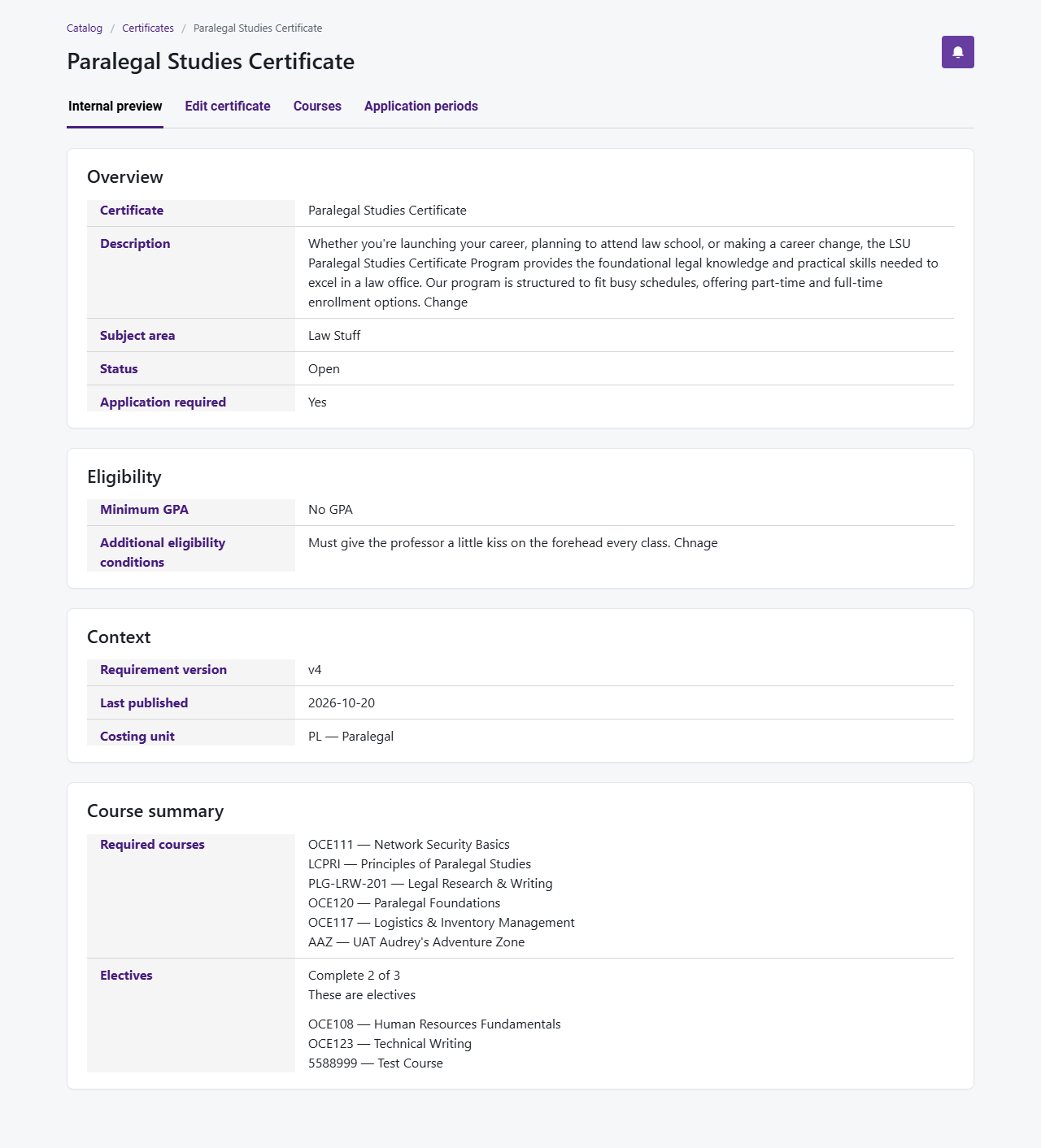
- Look at Required courses and Elective groups
- Make one meaningful change — add an elective group, add or remove an allowed course, or reorder required courses if the page lets you drag
- Open Path review and confirm it matches what you set up
You're done when
Step 3 — Check GPA and eligibility (if needed)
- In Certificate context, review Minimum GPA, No GPA, and any extra eligibility notes
- Change them only if your policy requires it
- Click Save draft
You're done when
Step 4 — Confirm you're ready to publish
- Scroll to Publish
- Click Check publish readiness
- Fix anything it flags, then check again
You're done when
Step 5 — Publish the new version
- Read the warning about learners already enrolled vs future enrollees
- Check the acknowledgement box
- Click Publish
- Check Version history for the new published version
You're done when
Extra time — Published preview
- From the certificates list, click Published preview for Paralegal
- Spot-check name and required courses
You're done when