What you're checking
You can add a new dated class offering under an existing course — set dates, seats, price, meeting pattern, and the name learners will see — starting from the certificate program (not from a loose course list shortcut).
Before you start
| Role | Password | |
|---|---|---|
| Program Manager | pm_catalog@example.com | password12! |
Use Open training site, then sign in as Program Manager.
Use the Paralegal Studies Certificate path to Legal Research & Writing. That keeps enrollment and publish working later.
Important: For this walkthrough, start from Certificates, not the standalone Courses tile alone.
Step 1 — Open sections for Legal Research & Writing
- Open Catalog → Certificates
- On Paralegal Studies Certificate, open the ⋯ menu → View courses (do not click the certificate name — that opens program edit)
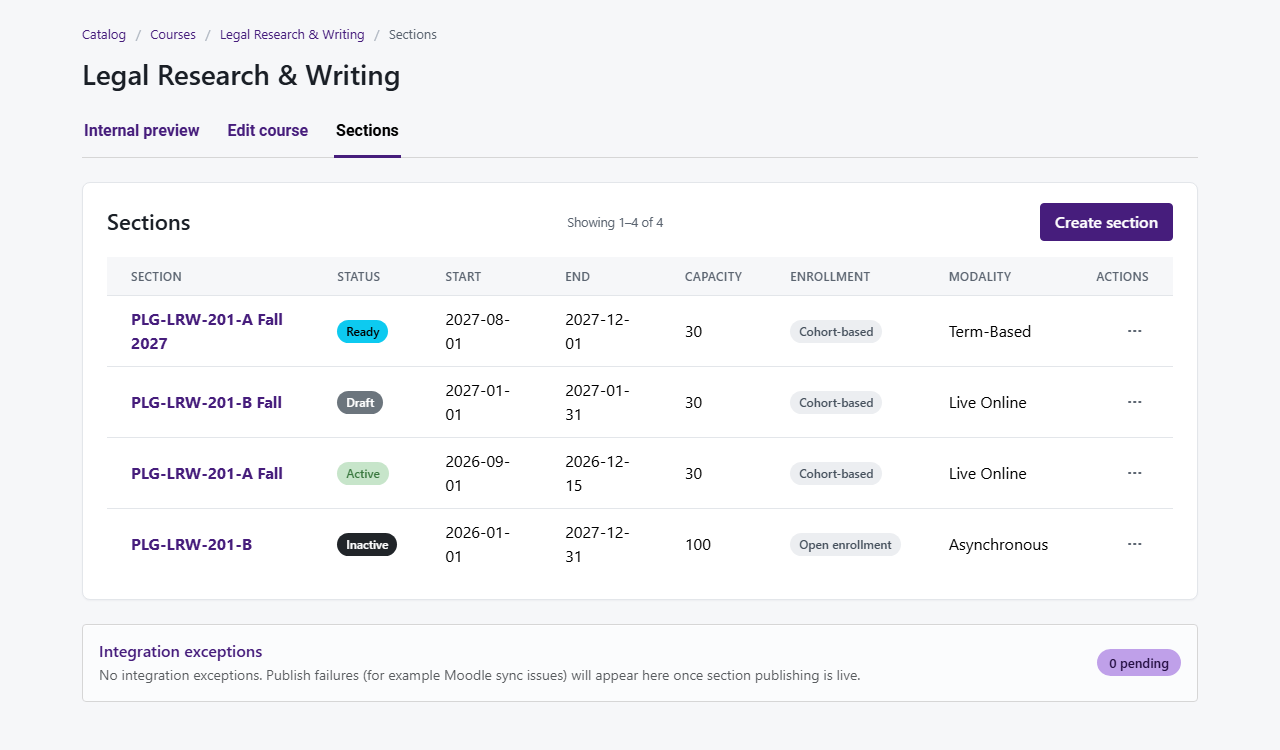
- On Legal Research & Writing (PLG-LRW-201), open ⋯ → View sections
- The page should show you are under Paralegal and this course
You're done when
Step 2 — Create a new draft section
- Click Create section
- Confirm the page title is Create section and the trail shows Paralegal → Legal Research & Writing
- Enter Start date, End date, Capacity, and Section price (for example Jan–Apr 2027, 25 seats, $675)
- Leave status as Draft
- Click Save section
You're done when
Step 3 — Add the section name and schedule
- On your new section, ⋯ → Edit section
- Use the step strip — open Details & schedule
- Enter Section name / number (required — for example Spring 2027 — Evening Cohort)
- Check Modality and Location fit how the class runs
- Add meeting times if the class is not fully online/async
- Click Save details & schedule
- Read the Learner-facing summary — would a learner understand it?
You're done when
Step 4 — Peek at the internal preview
- Click Preview (internal) from the section workspace
- Check dates, name, and schedule wording
- Go back to Details & schedule
You're done when
Extra time — Copy a section for another term
- Back on the section list, open ⋯ on an existing section
- If Duplicate section is there, use it
- A copy should bring settings forward but leave dates and price blank for you to fill in
- Save as a second draft
You're done when