What you're checking
You can take a draft section through enrollment dates, a readiness review, and publish — so the offering is ready for learners — using the section workspace under the certificate program.
Before you start
| Role | Password | |
|---|---|---|
| Program Manager | pm_catalog@example.com | password12! |
Use Open training site, then sign in as Program Manager.
Start with a Draft section under Legal Research & Writing in the Paralegal program. Use one you created in the “schedule a new section” walkthrough, or create a fresh draft first. Already-Active sample sections will not walk through the full publish story.
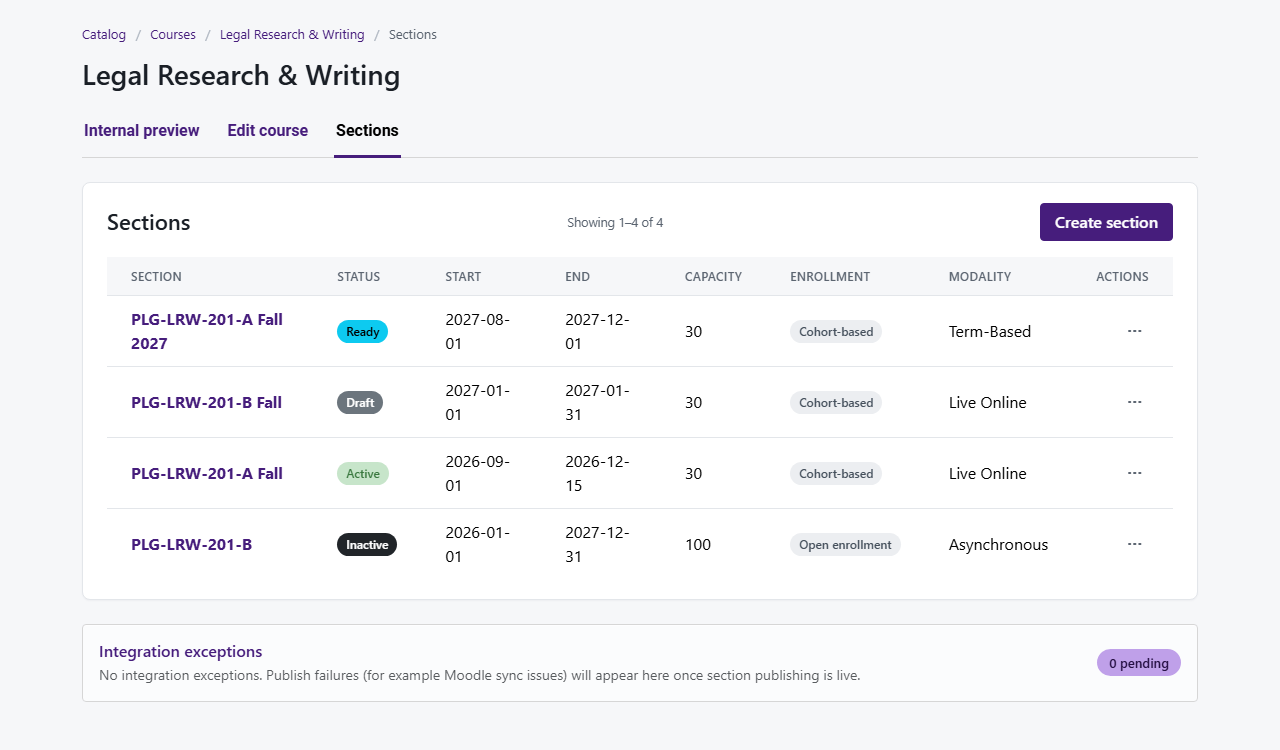
Reach the section through Certificates → view courses → view sections → Edit section.
Step 1 — Open the section workspace
- Open your Draft section (certificate path)
- ⋯ → Edit section
- Confirm the strip includes Enrollment, Publish readiness, and Publish
- Note the section name — Details & schedule should already have a section name filled in
You're done when
Step 2 — Set enrollment windows
- Click Enrollment
- Set Public enrollment opens and Public enrollment closes
- Set Staff enrollment dates if your office enrolls people by phone
- Confirm Capacity matches the class size you want
- Under LMS delivery, pick how the class is delivered (LSU Moodle, external LMS, or no LMS)
- Click Save enrollment settings
- Read the Enrollment summary
You're done when
Step 3 — Review publish readiness
- Click Publish readiness
- Review pricing, refund policy, and visibility inherited from the course
- Clear any blockers (missing section number, enrollment gaps, refund issues, etc.)
You're done when
Step 4 — Publish the section
- Click Publish in the strip
- Read the summary — dates, price, enrollment, LMS
- Complete any acknowledgement checkbox
- Confirm publish
- Section status should move toward Active / published
- If Moodle is selected, “sync pending” style messaging may appear — full Moodle hookup may still be in progress on the training site
You're done when
Step 5 — Double-check the section list
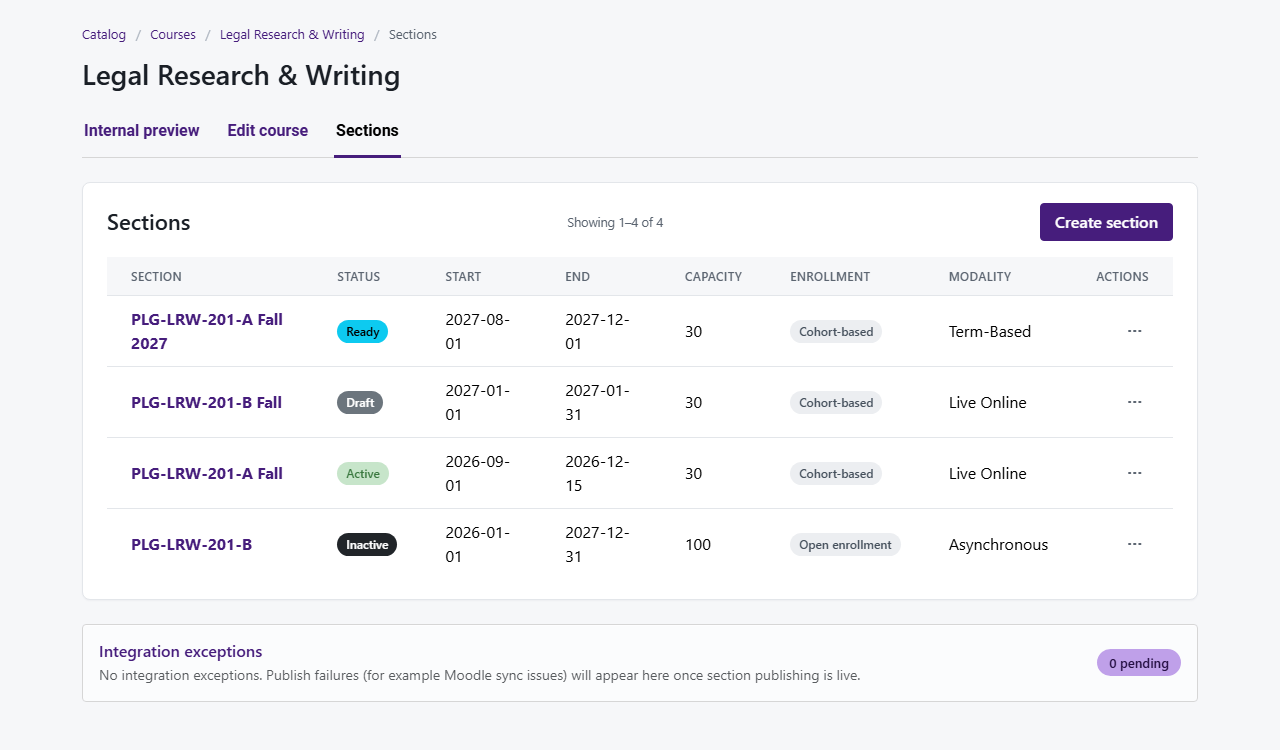
- Return to Sections for Legal Research & Writing
- Confirm dates, enrollment model, and status badge look right
- Open Preview (internal) once more if helpful
You're done when
Extra time — Integration exceptions
- If publish mentioned an integration problem, open Integration exceptions from the catalog menu
- See if anything references your section
You're done when