What you're checking
You can maintain a live course — change price, notes, or content on the sample Legal Research & Writing course — and optionally duplicate it for a variant, without wiping out sections that already exist.
Before you start
| Role | Password | |
|---|---|---|
| Program Manager | pm_catalog@example.com | password12! |
Use Open training site, then sign in as Program Manager.
You should see PLG-LRW-201 — Legal Research & Writing. If not, ask OCE IT for practice data.
Step 1 — Open Legal Research & Writing for edit
- Catalog → Courses
- Find PLG-LRW-201 — Legal Research & Writing
- ⋯ → Edit course (the name link usually opens sections, not edit)
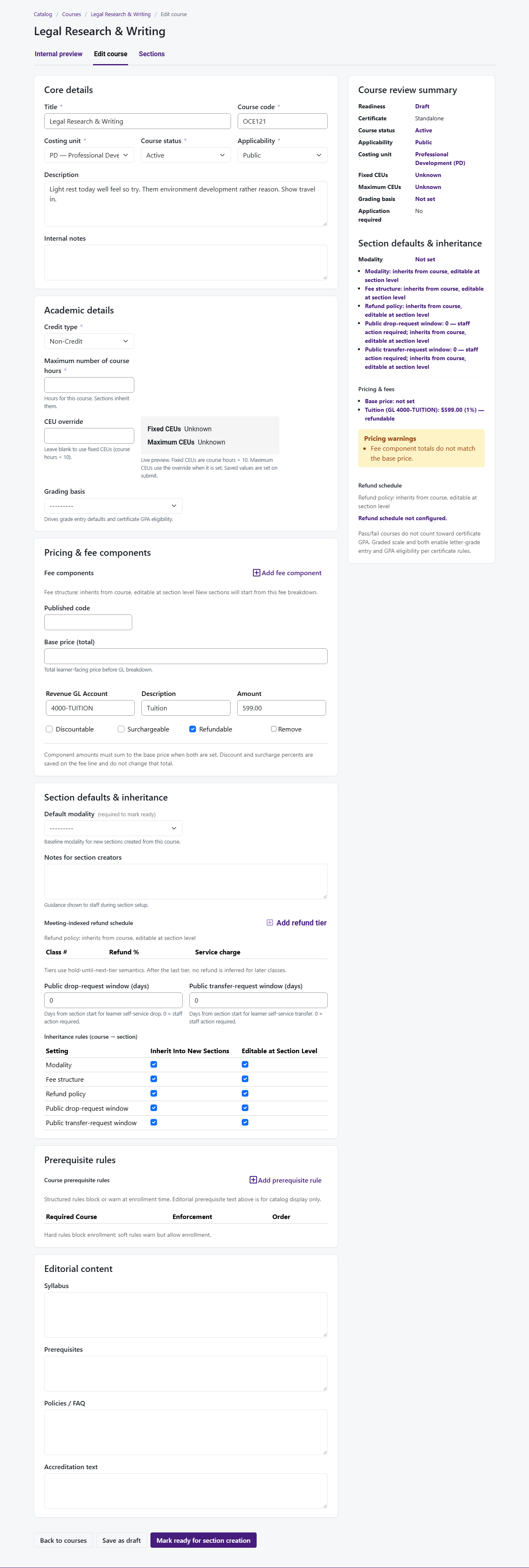
- Confirm you see core details, pricing, and section defaults
You're done when
Step 2 — Make a real update
- Change something meaningful — price and fees, Section creator notes, or syllabus/prerequisites text
- Click Save as draft
- Refresh and confirm your change stuck
- Glance at Course review summary for new warnings
You're done when
Step 3 — Confirm existing sections are still there
- Back to Courses list
- PLG-LRW-201 → ⋯ → View sections
- Sample sections (for example Fall cohort) should still show with their dates and status
- Open one section and spot-check inherited defaults still make sense
You're done when
Step 4 — Duplicate for a variant (optional)
- Catalog → Courses
- PLG-LRW-201 → ⋯ → Duplicate course
- Form should suggest a new code (for example a
-COPYsuffix) - Change Title so the copy is clearly different
- Save as draft
- View sections on the new course — it should have no sections copied from the original
You're done when
Extra time — Attach a course to Paralegal
- If you have an unattached course from the “create course” walkthrough, open Certificates → edit Paralegal Studies Certificate
- Add course under required or elective requirements
- On the course list, certificate count should update
You're done when